

You're twenty minutes into a call, the fan sounds like a leaf blower, and your video feed starts stuttering right as you're making your point. Or worse, the laptop just decides it's done and reboots itself mid-meeting. None of that is a coincidence and none of it means you need a new laptop. Video calls are one of the heaviest things a laptop does all day, running the camera, the microphone, the video codec, and usually a screen share or virtual background on top of whatever else you've got open, and most laptops were never built to dump that much heat while sitting flat on a desk or a lap where the intake vents underneath get blocked.
The fix isn't complicated, but it does need to happen in the right order. A slim, fan-equipped cooling pad like the Havit HV-F2056 handles the physical side of the problem for under $30, and a handful of free settings changes handle the software side that a cooling pad alone can't touch. Do both, and a laptop that used to throttle and stutter through every call starts running quiet and steady for the full meeting, no new hardware required.
Give the Vents Somewhere to Actually Breathe
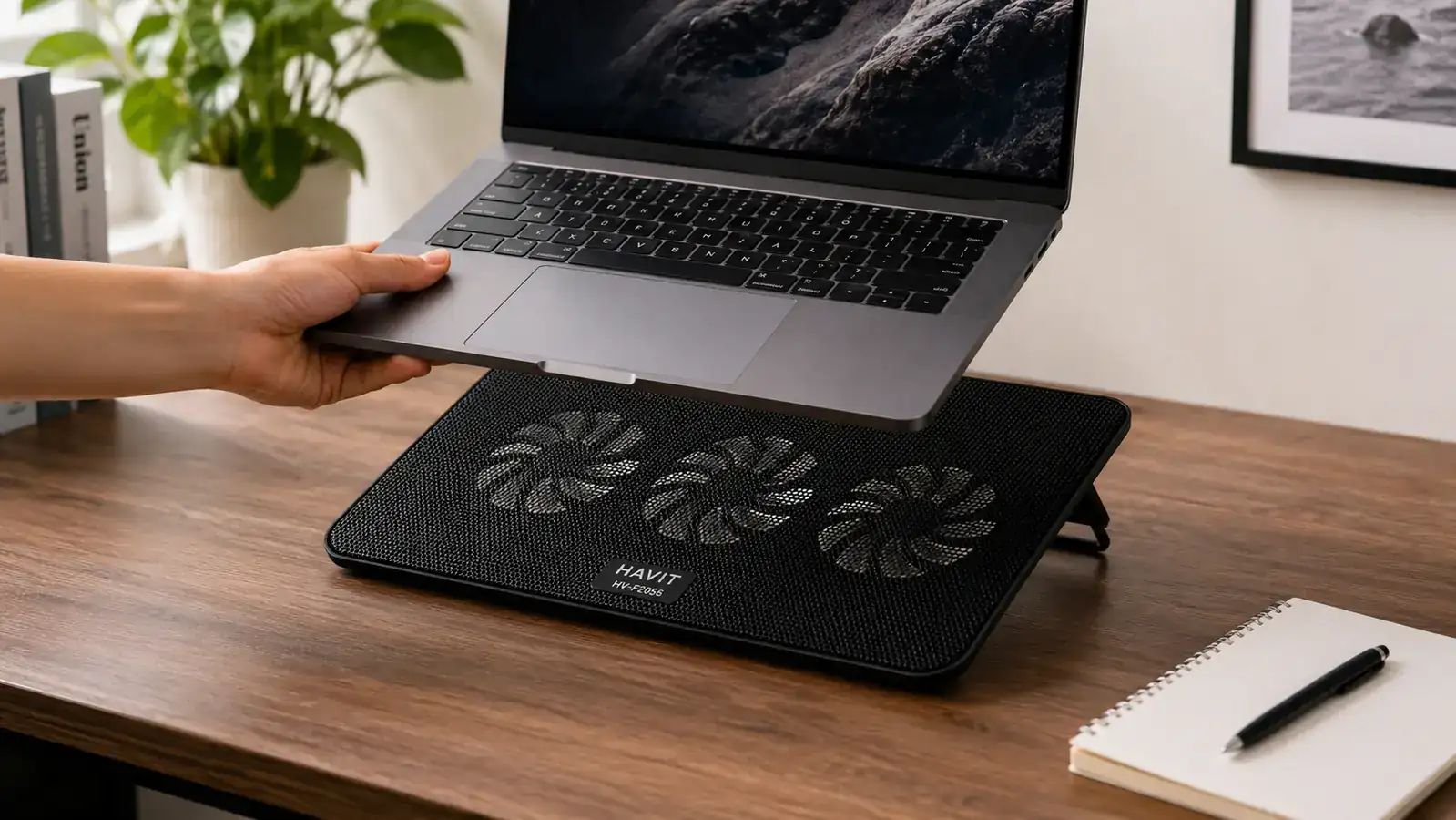
Most laptops pull cool air in from the bottom and push hot air out the side, and a flat desk blocks that intake completely. The Havit HV-F2056 lifts the laptop and adds three quiet USB-powered fans underneath it, which is usually the single biggest fix for a laptop that overheats during calls.
Amazon Check Today's Price on Amazon →Step 1: Confirm It's Actually Heat and Not Something Else
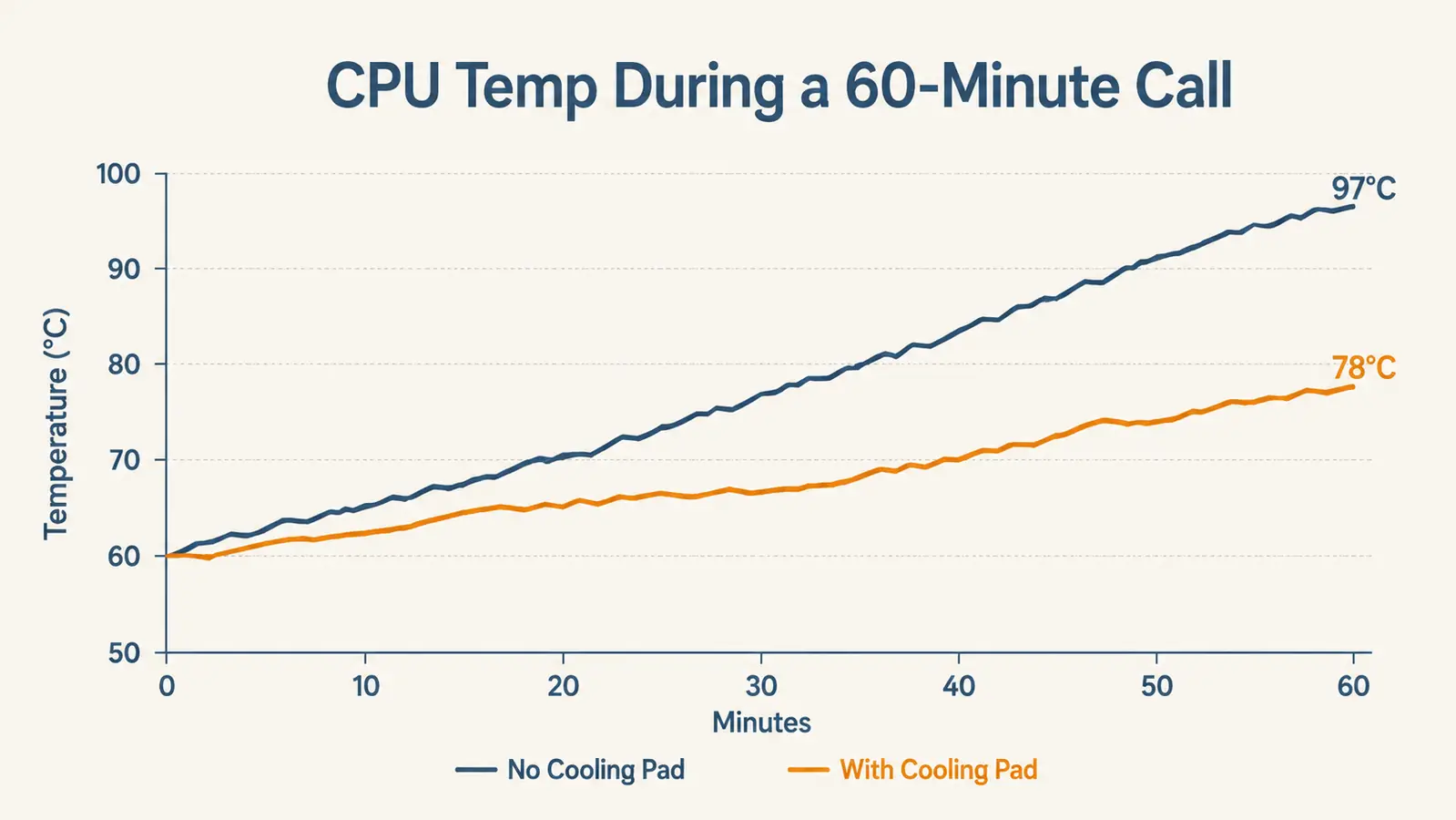
Before you fix anything, make sure heat is really the problem. Open Task Manager on Windows or Activity Monitor on a Mac during a call and watch what your CPU usage does. If it's pinned near 90 to 100 percent the whole time and the fan is running flat out, that's a strong sign the chip is working overtime and generating more heat than the laptop can move away fast enough. Most Intel and AMD laptop chips start throttling, meaning they deliberately slow themselves down to avoid damage, somewhere around 95 to 100 degrees Celsius, and that throttling is exactly what shows up as choppy video and audio that lags a half second behind your mouth.
If you want an actual number instead of a guess, free tools like HWMonitor on Windows or the built-in Activity Monitor's Energy tab on a Mac will show you real CPU temperature while a call is running. Anything that climbs past 90 degrees Celsius and stays there for more than a minute or two during a routine video call is a laptop that's running hotter than it should for the workload. Write that number down before you change anything. It's the only way to know later whether the cooling pad and the settings changes actually moved the needle or whether you just got lucky on a cooler day.
Also check where you're actually sitting the laptop while you're on calls. A bed, a couch cushion, a stack of papers, or your actual lap all block the intake vents on the bottom of the laptop completely, and no amount of software tweaking fixes that. If that's where you've been working, that's very likely most of the problem right there, and it's worth confirming before you spend money on anything else.
Step 2: Clear Every Vent You're Blocking Without Realizing It
Once you know where the laptop's intake vents actually are, usually a strip along the bottom near the hinge and sometimes along one or both sides, make sure nothing is covering them during a call. That means no soft blanket, no stack of folders, no laptop bag padding underneath it. A hard, flat desk surface is better than a soft one, but even a bare desk still traps a layer of warm air right against the bottom of the laptop with nowhere for it to go, since there's no gap for fresh air to get pulled in underneath.
This is also the point to check whether dust has built up in the exhaust vent, usually a slotted grille on the back edge or one side of the laptop. A can of compressed air, held upright and used in short bursts while the laptop is off, clears out the dust bunnies that build up over a year or two of daily use and quietly choke off airflow the fan is trying to push through. If you've never done this on a laptop that's more than 18 months old, there's a decent chance this alone knocks several degrees off your running temperature during calls.
Step 3: Add Active Airflow With a Cooling Pad
Clearing the vents helps, but it doesn't solve the core problem, which is that the laptop is sitting flat with almost no space for air to move underneath it in the first place. A slim cooling pad fixes that directly by lifting the laptop a couple of inches off the desk and running its own fans underneath the intake vents, pulling cooler ambient air up through the machine instead of letting it just recycle the same warm pocket of air sitting under the chassis.
The Havit HV-F2056 is built specifically for this, with three quiet fans spread across a slim aluminum-mesh deck that fits 15.6 to 17-inch laptops and runs off a single USB cable, so it draws power straight from the laptop with no separate charger or outlet needed. It's flat enough to slide into a laptop bag without adding real bulk, which matters if you're working from more than one spot during the week, whether that's a home desk one day and a coffee shop or coworking space the next. Slide it under the laptop, plug in the USB cable, and it starts running immediately, no software or setup required.
Run the same call-length test from Step 1 with the cooling pad in place and check your temperature numbers again. Most people see CPU temps stay 10 to 20 degrees cooler over the course of a long call compared to running flat on a bare desk, and the fan noise the laptop's own internal fan makes usually drops noticeably too, since it doesn't have to spin as hard to move the same amount of heat. That's the physical half of the fix, and for a lot of people it's the whole fix on its own.
Step 4: Cut What's Making the CPU Work Overtime During Calls
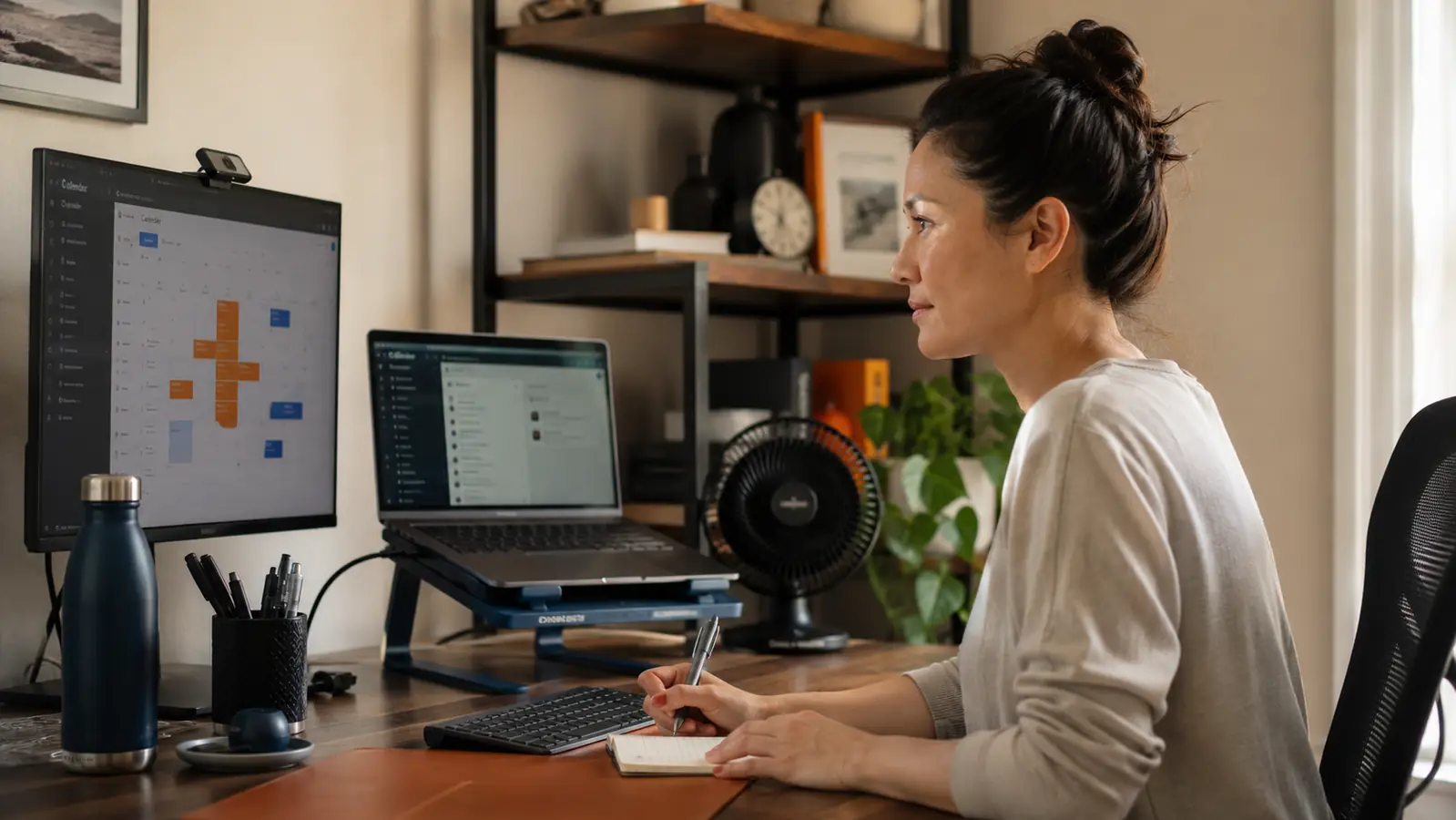
Even with a cooling pad running, a handful of software habits keep the CPU working harder than it needs to during calls, and that extra load is heat you're generating for no real benefit. Virtual backgrounds and background blur are the biggest offenders, since both features run continuous video processing in the background for the entire call, and on a laptop without a dedicated graphics chip, that processing falls straight onto the CPU. Turning off blur and virtual backgrounds when you don't strictly need them, and using a tidy real background instead, is one of the fastest ways to drop CPU load and temperature during a call.
Close anything running in the background that doesn't need to be open during the call itself. Browser tabs auto-refreshing news sites, a sync client quietly indexing files, a second monitor running a video in the corner, all of it adds up. Most video call apps also let you drop your outgoing video resolution a step, from 1080p down to 720p for example, in the app's video settings, and most people on the other end of the call will never notice the difference, while your laptop notices it immediately in lower CPU usage.
If you're on Wi-Fi and it's spotty, that's also worth fixing here, since a shaky connection makes the video call app work harder trying to recover dropped frames and re-encode video at a lower bitrate on the fly, which burns extra CPU cycles you don't need to spend. A wired ethernet connection, even just for the duration of important calls, takes that variable off the table entirely and lets the laptop spend its processing budget on the call itself instead of fighting the network.
Step 5: Build a Routine So This Stays Fixed
The individual fixes matter, but the real win is making them automatic instead of something you have to remember every time a calendar invite shows up. Keep the cooling pad plugged in and sitting on the desk permanently, not tucked away in a drawer you have to dig through five minutes before a call starts. If it's already in place and already running, using it stops being a decision and just becomes part of how the desk is set up.
Do the same with your video settings. Most call apps let you set a default camera resolution and turn off blur as the standing default rather than something you toggle per meeting, so set it once and stop thinking about it. If your room runs warm in general, especially in summer or in a space without great air conditioning, a small desk fan angled at the laptop, not directly at your face, adds another layer of cooling on top of the pad for almost no cost and no extra effort once it's in place.
What Else Helps
If you're still running hot after all five steps, the next upgrade worth considering is running the laptop in clamshell mode, meaning the lid closed and an external monitor doing the actual display work, with the laptop propped up on a stand for airflow. This isn't about looks. A closed lid puts the internal cooling design to less work in some models, and pairing it with an external webcam and monitor gets you a better video call picture anyway, which is a nice side benefit on top of the temperature fix. It's not necessary for most people, but it's worth knowing about if you've done everything else here and you're still seeing the fan work hard on every call.
It's also worth checking your laptop's power settings. Windows and macOS both have a battery or performance mode that can be nudged toward "balanced" instead of "best performance" during calls specifically, since call software rarely needs the CPU's absolute top speed and that top speed is exactly what generates the most heat. None of these individually make a dramatic difference, but stacked together with a cooling pad already doing the physical work, they add up to a laptop that runs a genuinely full workday of back-to-back calls without ever sounding like it's under real strain.
A hot laptop on a video call isn't a hardware failure. It's a machine trying to breathe through vents you didn't realize were covered.
Fix the Airflow First, Everything Else Is Easier After That
If you only do one thing from this guide, get the laptop off the flat desk and onto something with fans underneath it. The Havit HV-F2056 is slim enough to travel with, runs off a single USB cable, and takes about ten seconds to slide into place before your next call.
Amazon Check Today's Price on Amazon →